← Back to cards

Put your card on your home screen. Three taps.

Your card lives on the web, which is why there is no app to download and nothing for the person you hand it to, either. Adding it to your home screen gives you the one thing an app would: an icon you tap. Under a minute to learn, under ten seconds every time after.

iPhone · iOS 27

iOS 27 — Safari, share, add.

iOS 27 is the current iPhone software, out since September 2026. If your iPhone has updated this year, these are your steps.

About 40 seconds, first time
  1. 01

    Open your card in Safari and find the 3 lines or dots.

    The lines/dots are located at the bottom of the page by the URL. Check your card is published by checking the 'Your Cards' page in your account on a desktop or laptop.
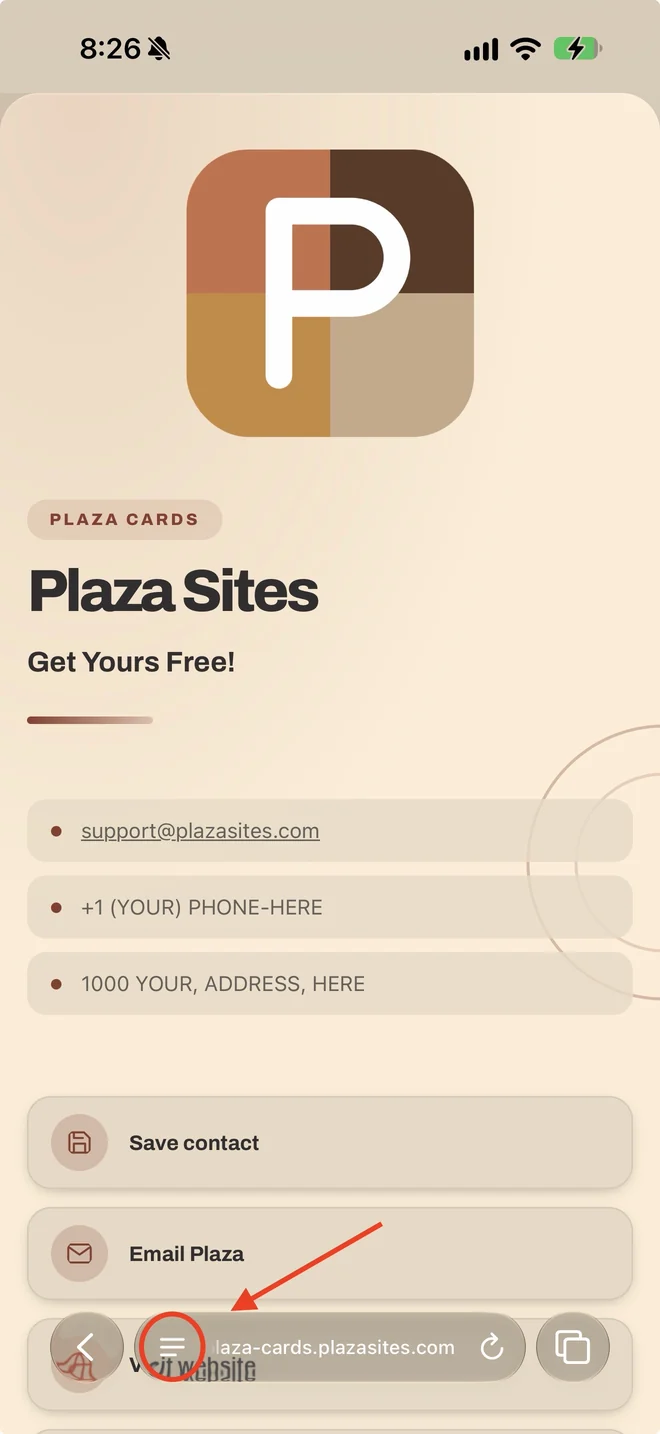
    A Plaza card open in Safari, with the page menu button in the bottom bar highlighted
  2. 02

    Find the Share button.

    After identifying the lines/dots at the bottom of the page, tap them, then find and tap share.
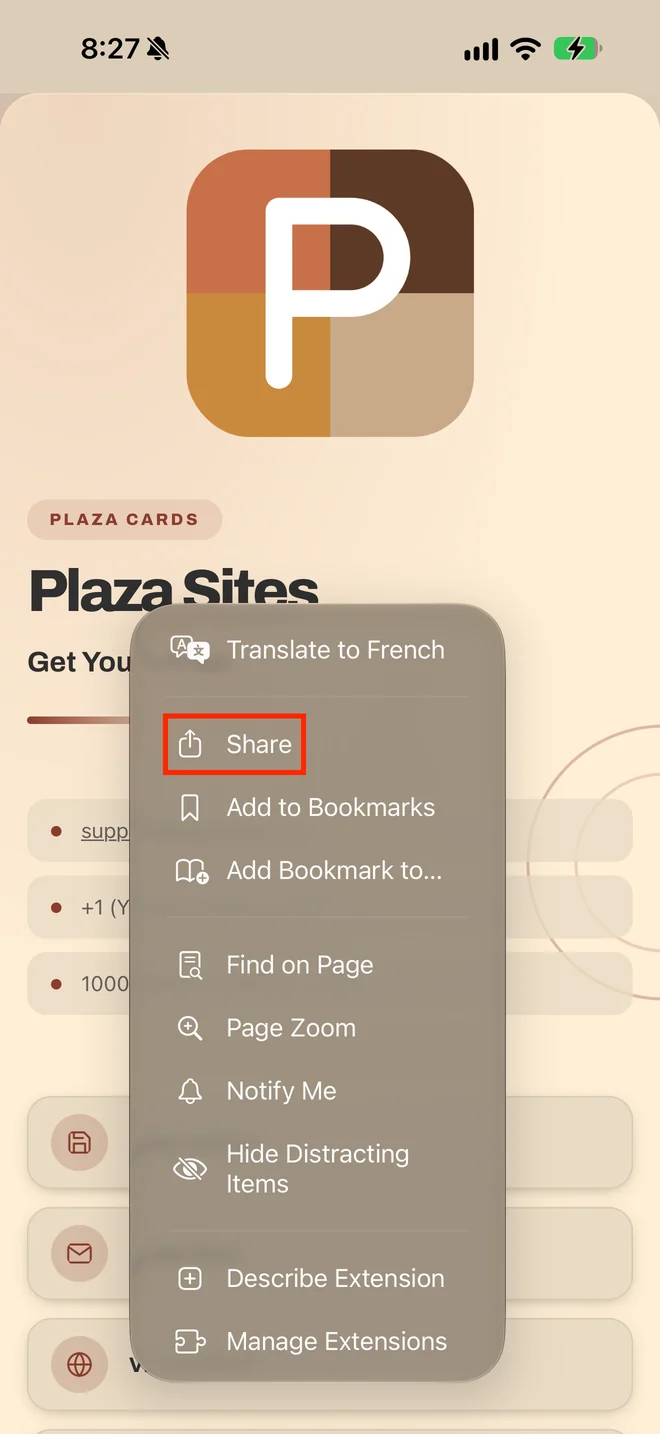
    The Safari page menu open, with Share highlighted
  3. 03

    Choose view more.

    Select view more to view the necessary options.
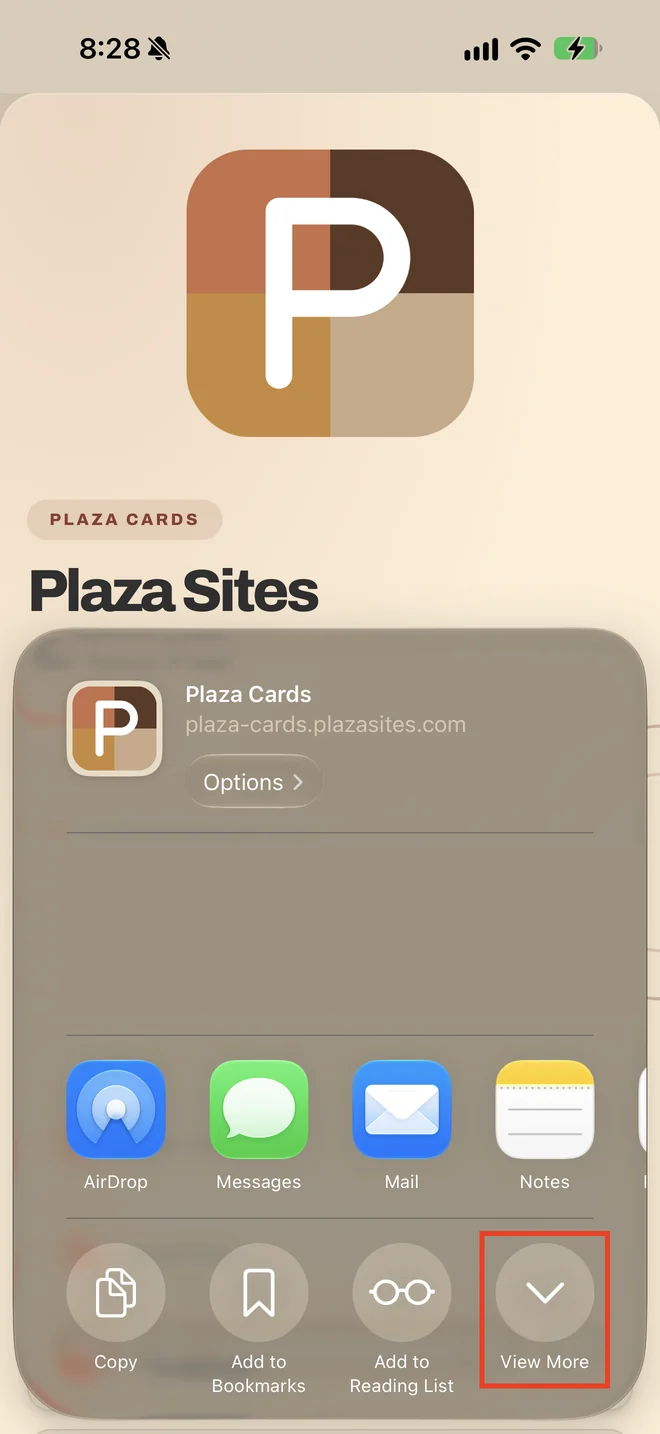
    The iOS share sheet, with View More highlighted in the bottom right corner
  4. 04

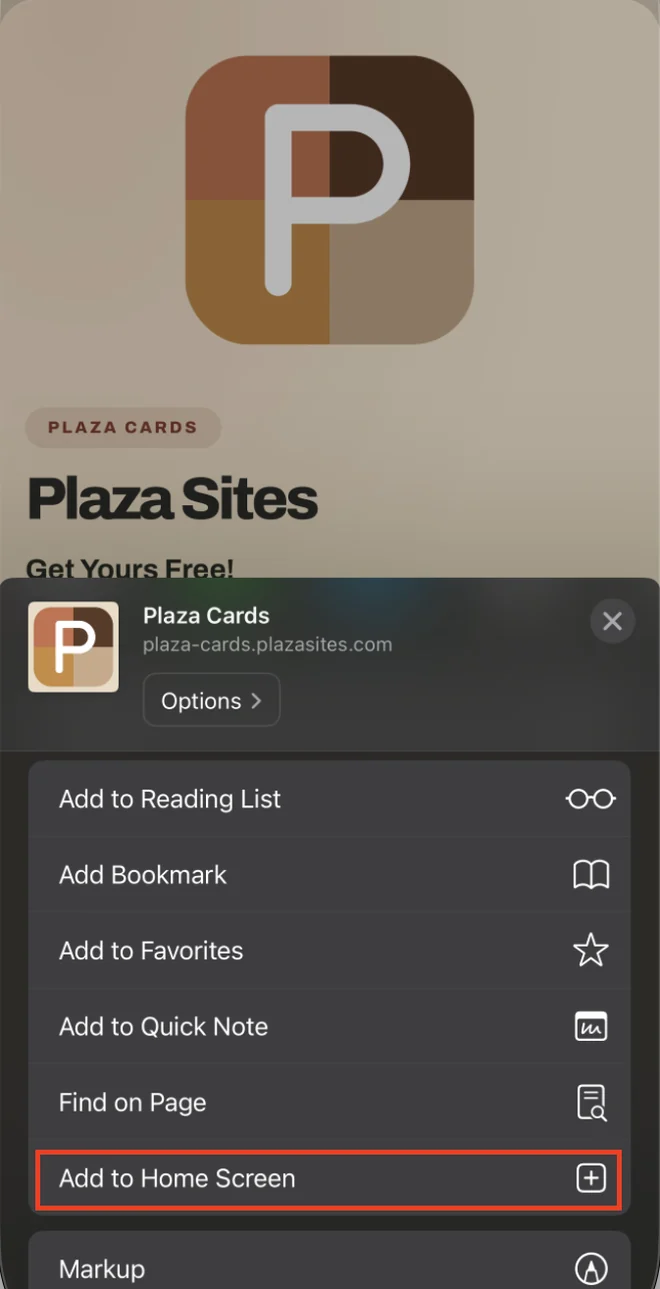
    Choose Add to Home Screen.

    Find and select add to home screen and a popup should quickly appear.
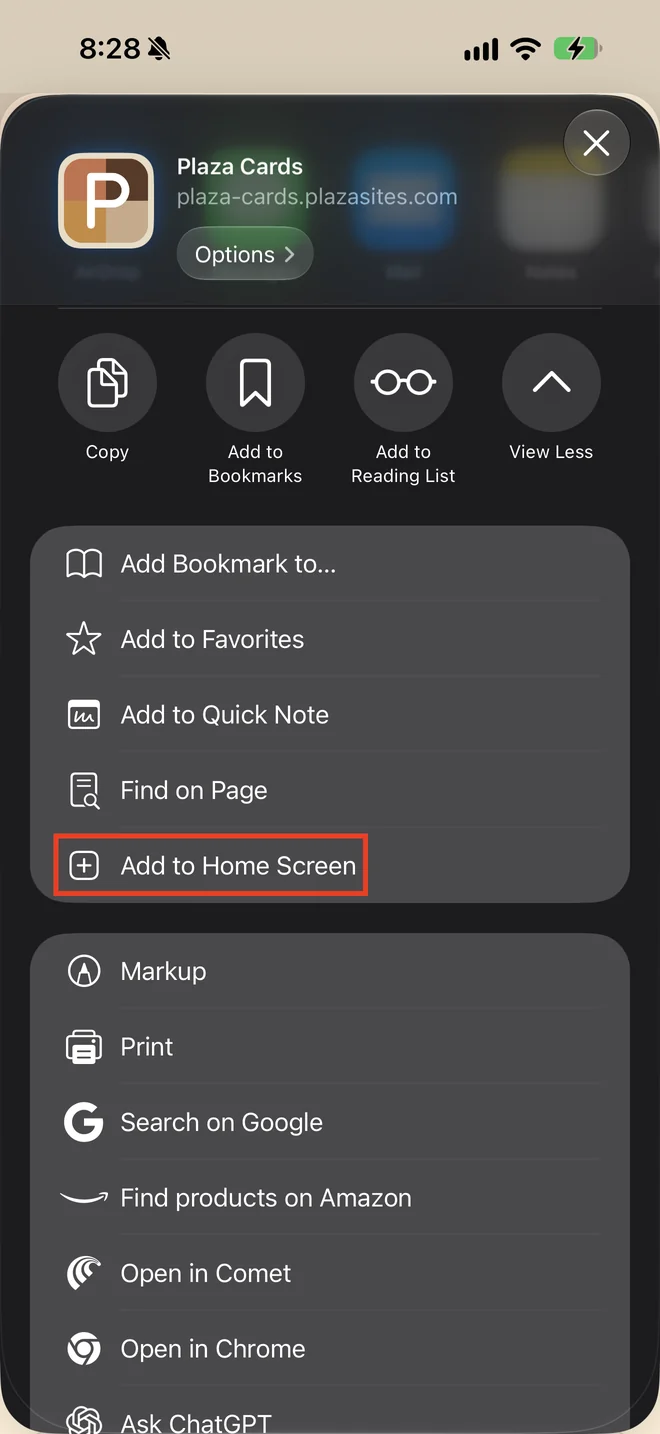
    The expanded share sheet list, with Add to Home Screen highlighted
  5. 05

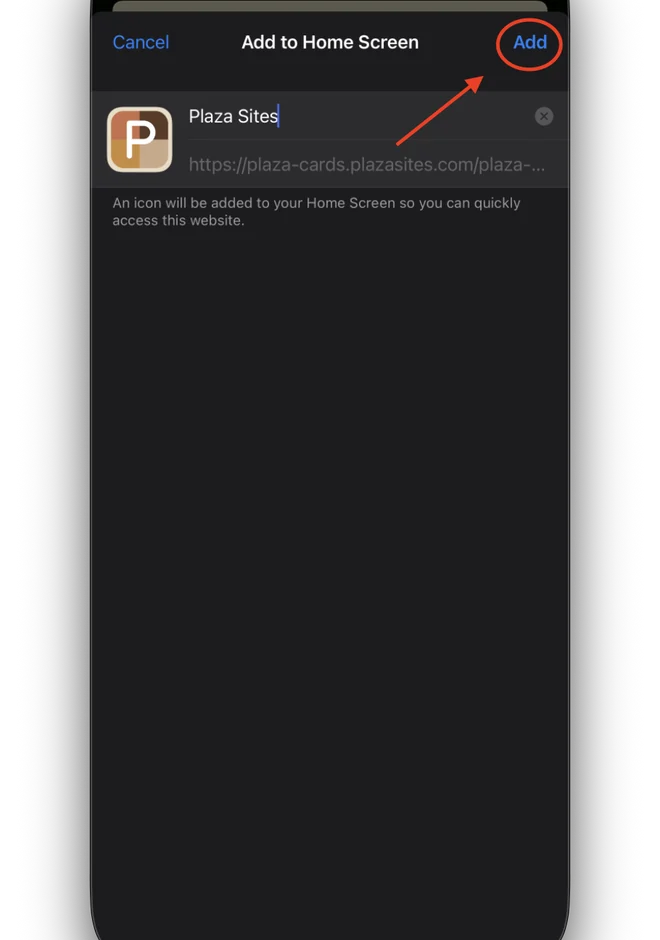
    Tap Add.

    The icon lands on your home screen. Tap it any time and your card is up instantly — the same card, always current, nothing to download.
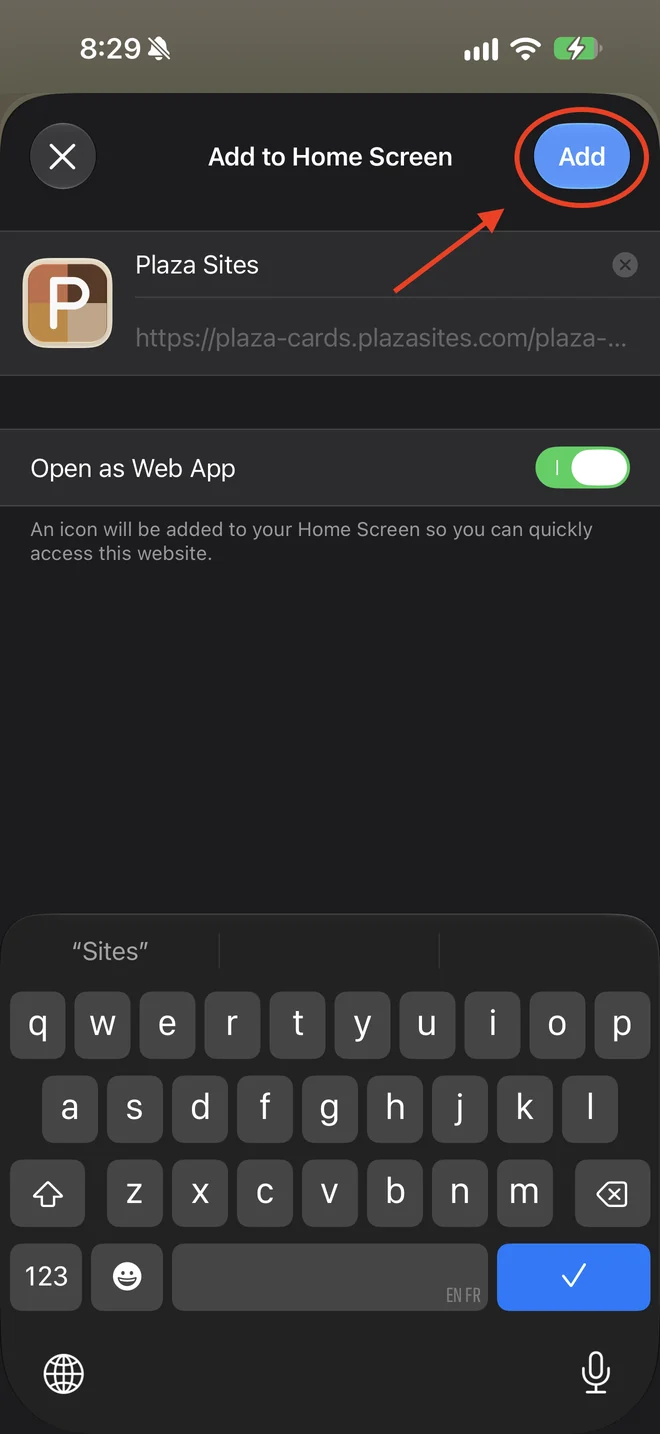
    The Add to Home Screen panel, with Open as Web App switched on and the Add button highlighted
Nothing gets installed.

What lands on your home screen is a shortcut straight to your own card. There is no app taking up space, no updates to accept, and when you edit a detail in your account the icon you already added shows the change immediately.

Having any trouble? Contact us and we will reach out and show you how ourselves.
iPhone · iOS 26

iOS 26 — one extra tap, sometimes.

Same flow as iOS 27, with one thing worth knowing: iOS 26 can show Safari's bottom bar in a slim Compact style, and when it does, the Share button moves inside the More menu.

About 45 seconds, first time
  1. 01

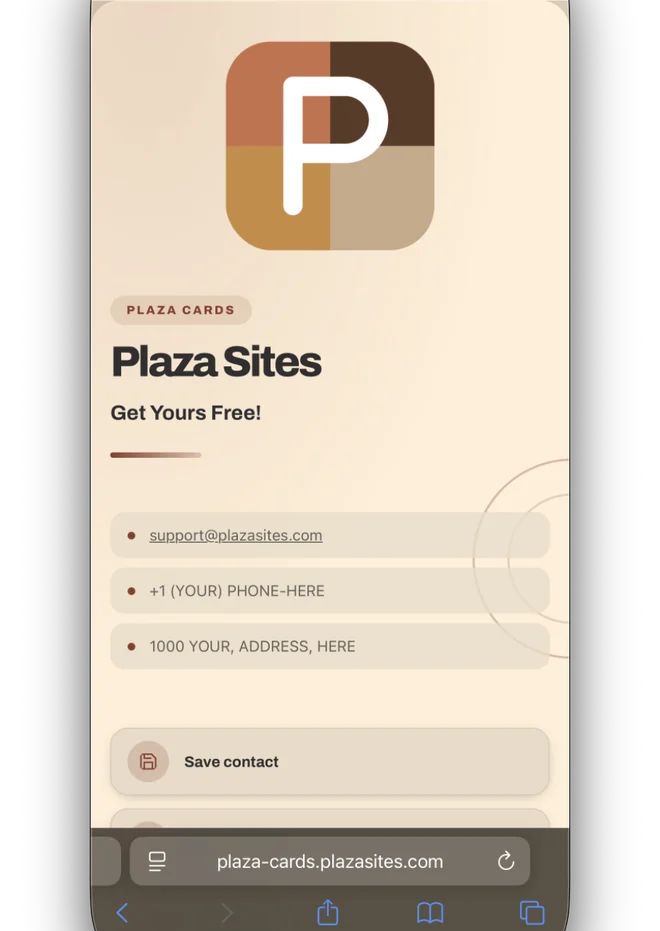
    Open your card in Safari.

    Check your card is published by checking the 'Your Cards' page in your account on a desktop or laptop.

    A Plaza card open in Safari with the full bottom bar showing
  2. 02

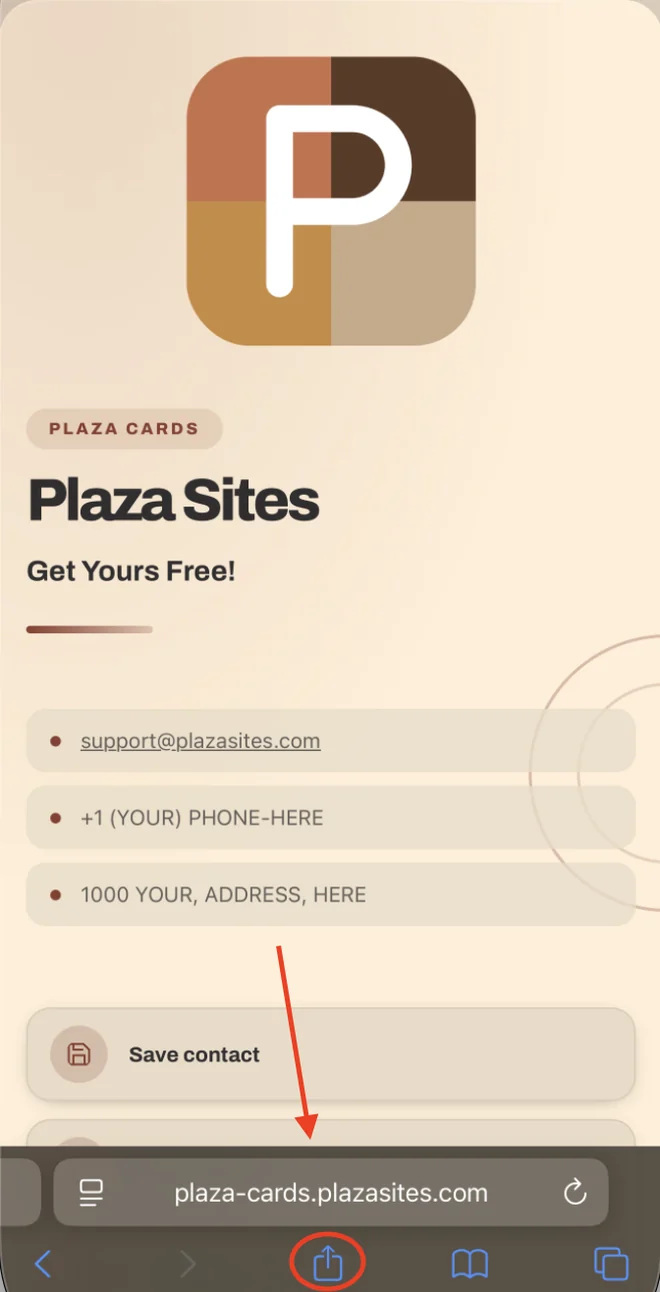
    Find the Share button.

    If your bottom bar shows the page address and a few buttons, Share is right there. If your bottom bar is the slim Compact style, tap the More button — three dots — and Share is in the menu that opens.

    An arrow pointing to the circled Share button in Safari's bottom bar
  3. 03

    Choose Add to Home Screen.

    Scroll the grey list of actions. If you do not see it, tap Edit Actions at the bottom of the list and switch it on once.

    Safari's share sheet with Add to Home Screen outlined in the list of actions
  4. 04

    Tap Add.

    Done. If you would rather have the full bottom bar back for next time, it is in Settings, then Apps, then Safari, then Tabs.

    The Add to Home Screen sheet with the Add button in the top right circled
Cannot find Add to Home Screen?

Scroll to the very bottom of the grey list in the share sheet and tap Edit Actions. Add to Home Screen is in that list — switch it on and it stays in your share sheet from then on.

Having any trouble? Contact us and we will reach out and show you how ourselves.
Android · Chrome

Android — menu, add, done.

Chrome on Android usually offers to do this for you. If it does not, it is three taps from the menu. The wording differs a little between phone makers, so both versions are below.

About 30 seconds, first time
  1. 01

    Open your card in Chrome.

    Tap your own card link — the plazasites.com address on your card.

  2. 02

    Tap the menu.

    Three dots, in the top right corner of Chrome.

  3. 03

    Choose Add to Home screen.

    Some phones word it Install app, and some show it as a small Install banner across the bottom of the page instead. All three do exactly the same thing.

  4. 04

    Confirm the name.

    Your card's name is filled in already. Shorten it if you want a tidier label under the icon.

  5. 05

    Tap Add, or Install.

    The icon appears with your other apps. Tap it and your card opens full screen, with no browser bars in the way.

Using a different browser?

Samsung Internet, Edge and Firefox all have the same option, usually worded Add page to or Add to Home screen, in the same menu. If yours does not offer it, open your card in Chrome once and add it from there.

Having any trouble? Contact us and we will reach out and show you how ourselves.
That is the whole thing. Really.

One card, on your home screen, ready to hand across a table. If you do not have one yet, it is free and it takes about as long as this guide did to read.